01
Choose your service
Current booking screen
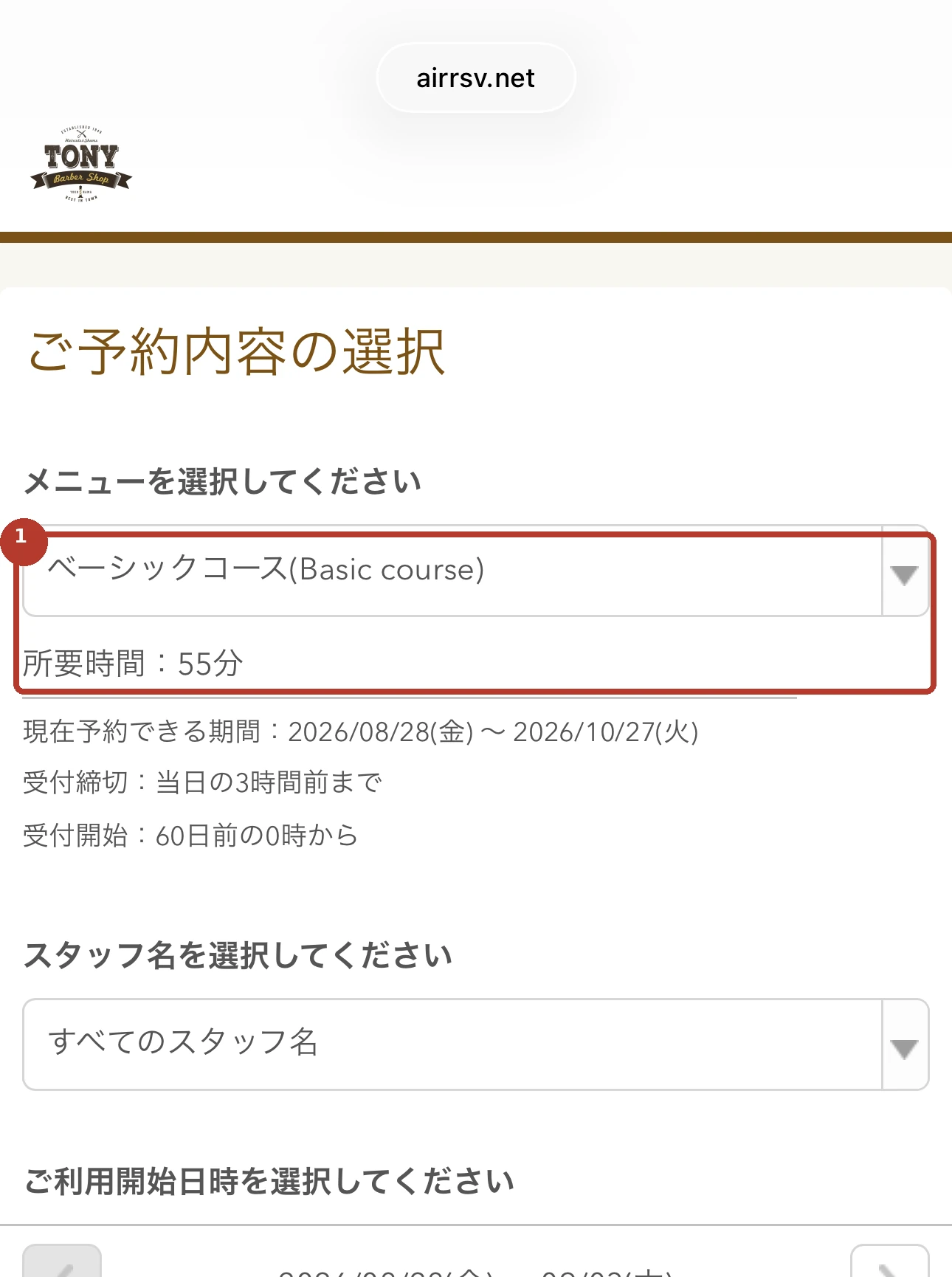
Japanese screen label
メニューを選択してください
メニューを選択してください = Please choose a service
Tap the menu field and choose the course or service you want.

TONY BOOKING GUIDE
A simple seven-step guide to TONY Bashamichi / Sakuragicho’s official booking page. Keep this guide open while booking in a new tab.
Open booking in new tabYou are opening TONY’s official external booking page. Tapz does not store booking or personal data.
Before you book
7 SIMPLE STEPS
Follow each stepCurrent booking screen
Japanese screen label
メニューを選択してください
メニューを選択してください = Please choose a service
Tap the menu field and choose the course or service you want.
Current booking screen
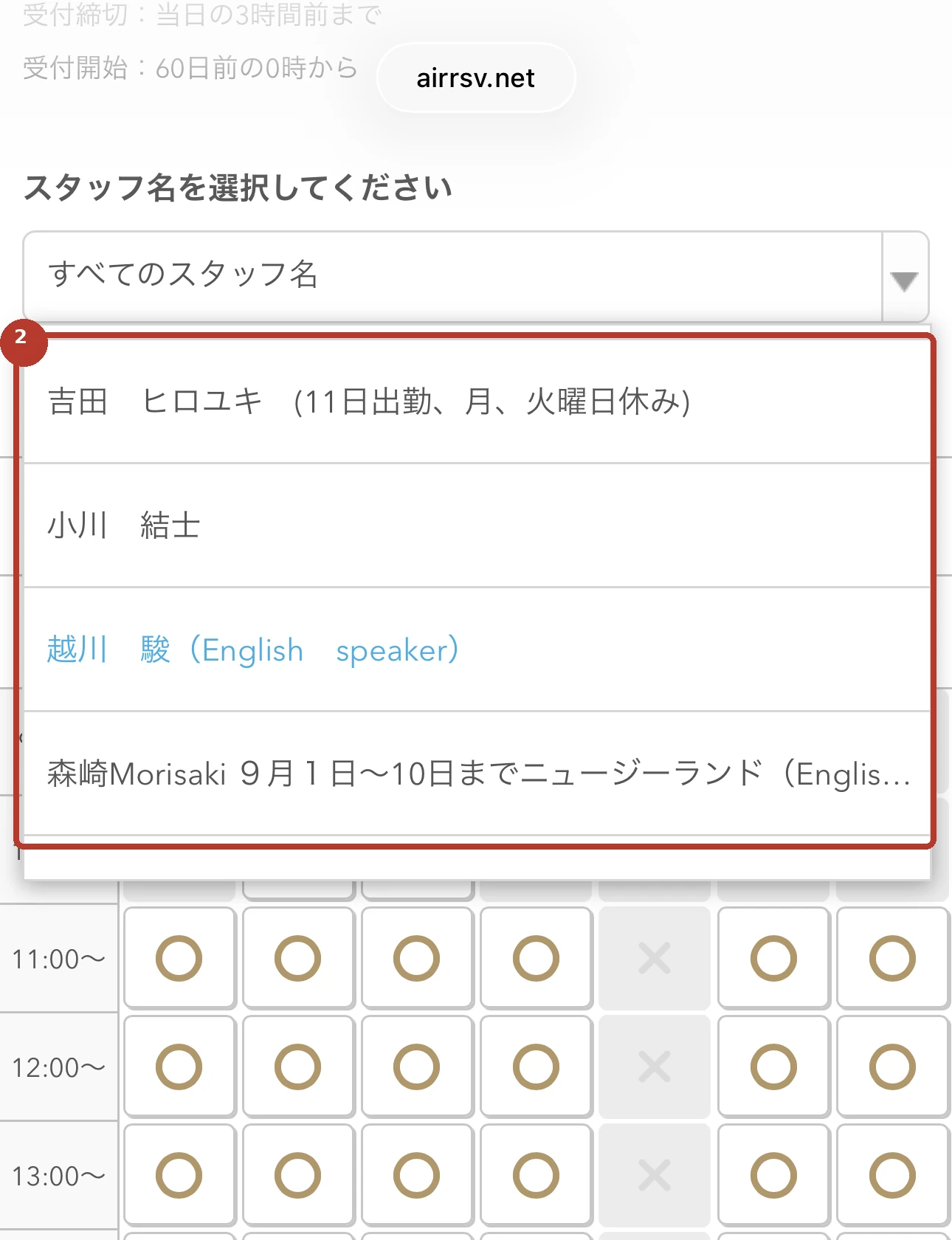
Japanese screen label
スタッフ名を選択してください
スタッフ名を選択してください = Choose your staff member
On the first booking screen, open the staff field and choose your preferred stylist to see that person’s availability. If you have no preference, leave “すべてのスタッフ名” selected to see availability for all staff.
The staff member is also required on the booking details screen.
Current booking screen
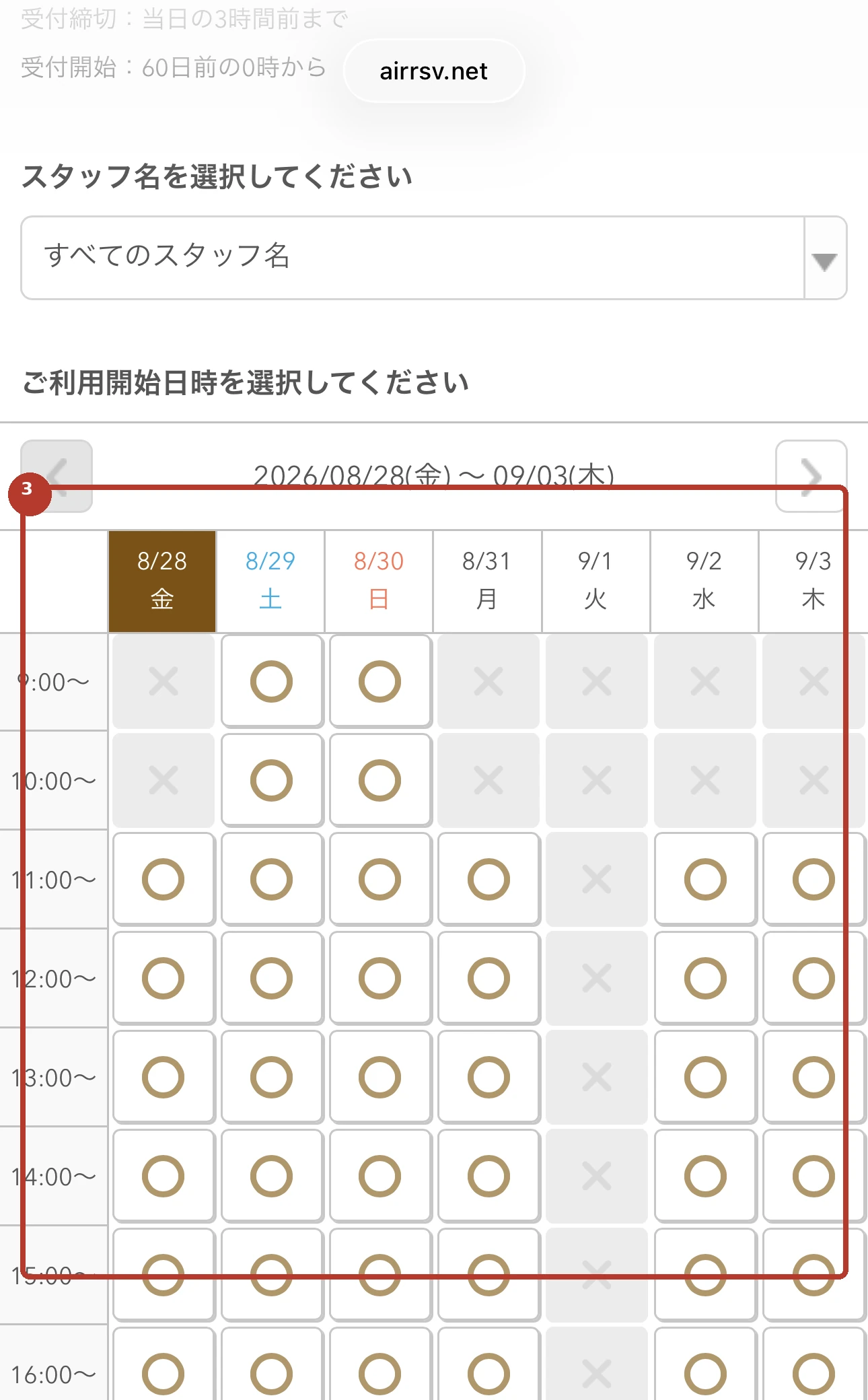
Japanese screen label
ご利用開始日時を選択してください
ご利用開始日時を選択してください = Choose your date and start time
Choose a date in the calendar and tap an available time slot. In “詳細な開始時間を選択してください”, choose the exact start time, then tap “内容確認・予約へ進む”.
Current booking screen
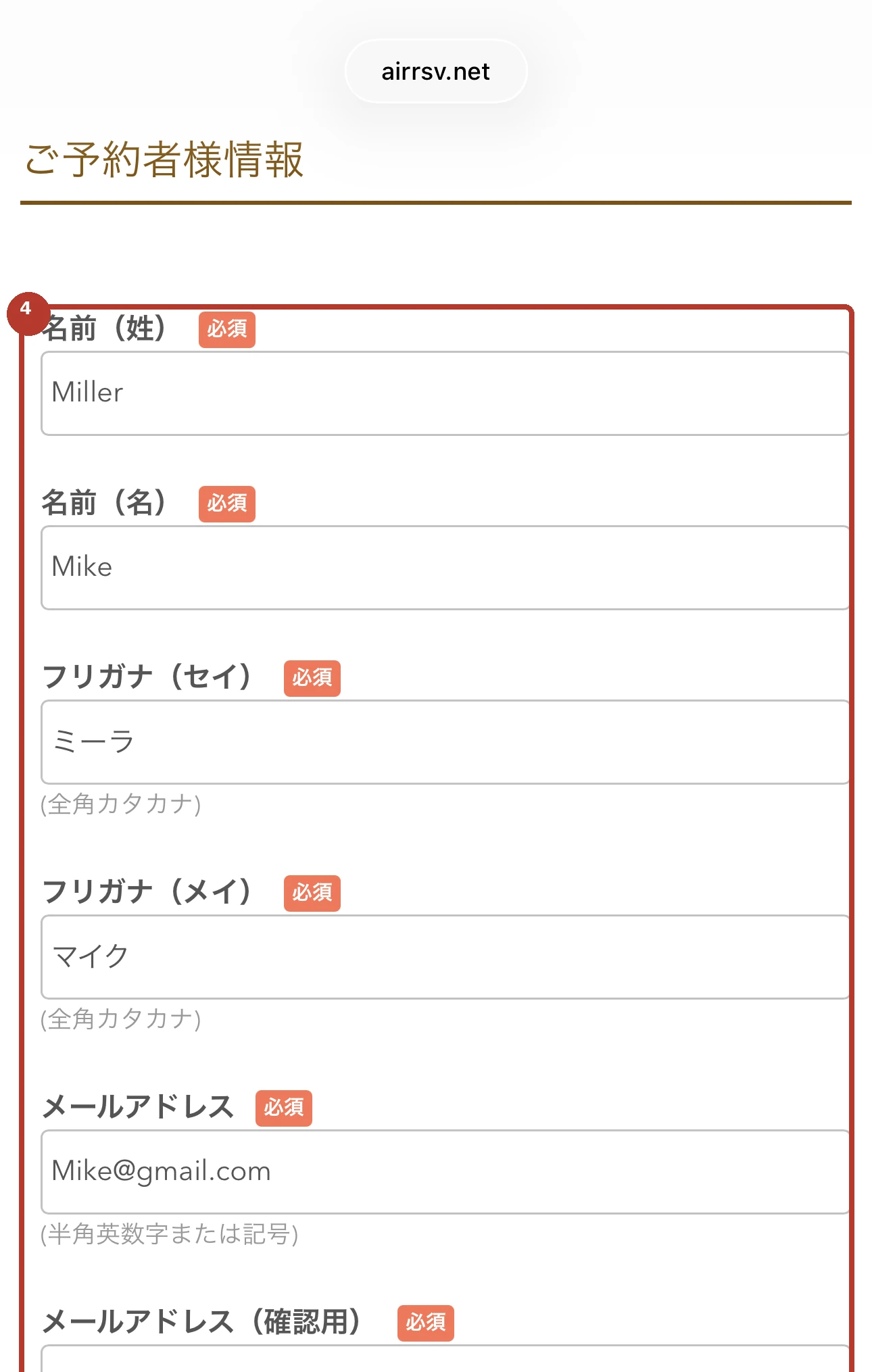
Japanese screen label
ご予約者情報の入力
ご予約者情報の入力 = Enter the guest’s information
This screen contains a fictitious example only. Enter your surname in 名前(姓) and given name in 名前(名). Then enter the Japanese reading of both names in フリガナ(セイ) and フリガナ(メイ), using full-width katakana. Add your email twice and your phone number, then tap “確認へ進む”.
The フリガナ(セイ/メイ) fields are required. Keep surname and given name in the requested order.
Current booking screen
Japanese screen label
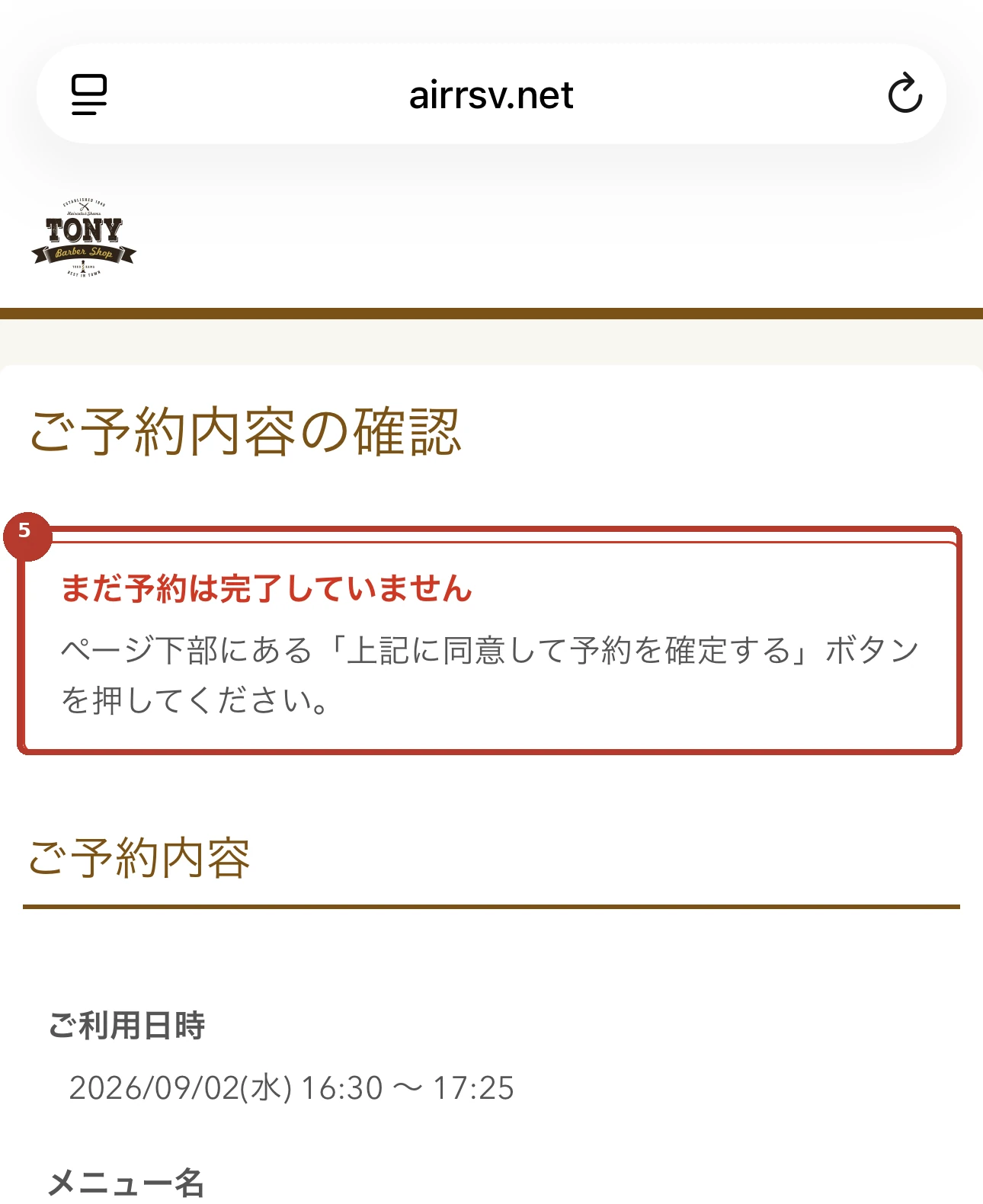
ご予約内容の確認
ご予約内容の確認 = Check your booking details
Check the date, time, service, staff member, price and all personal details. Tap “修正する” if you need to make a correction.
Your booking is not complete on this screen yet.
Current booking screen
Japanese screen label
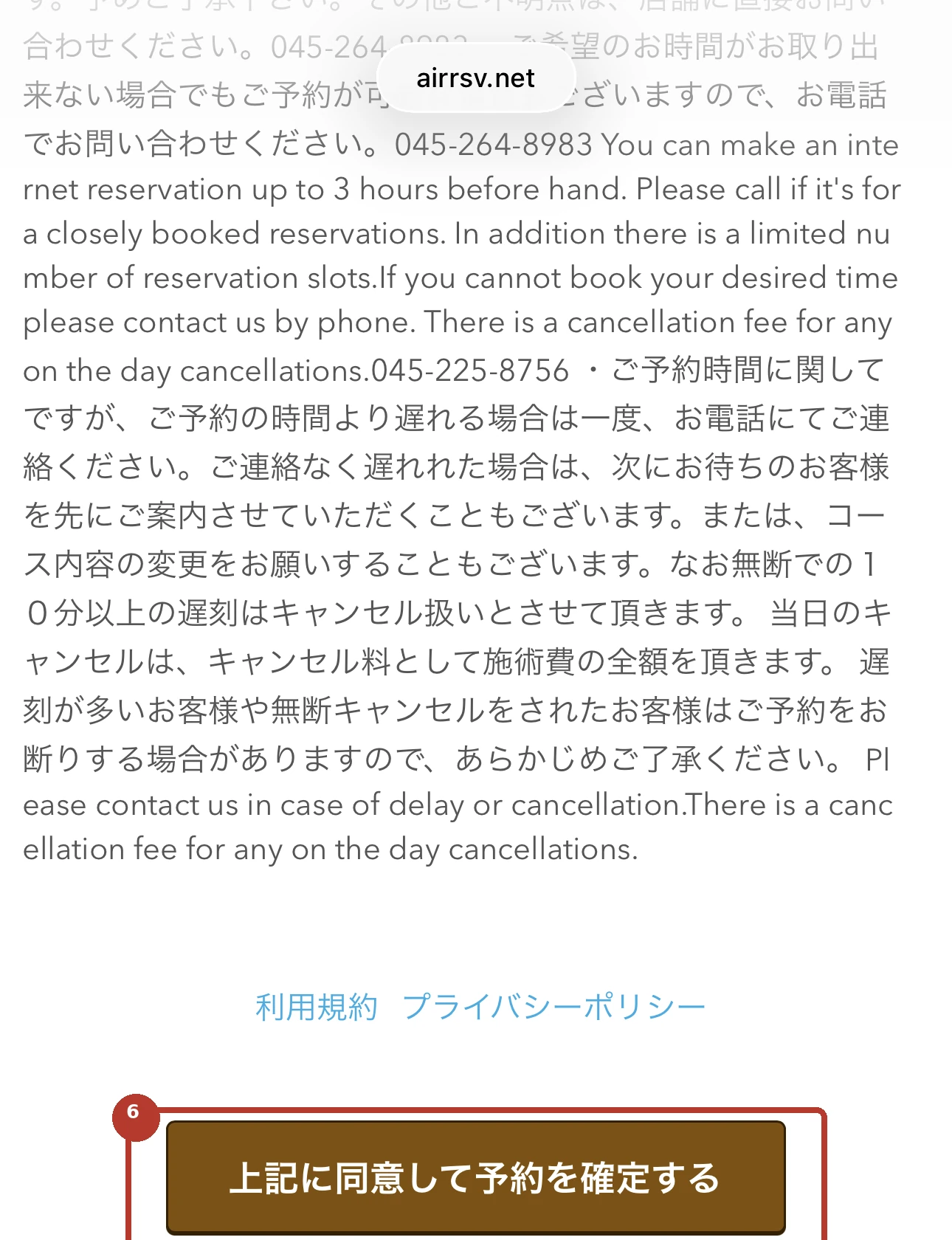
上記に同意して予約を確定する
上記に同意して予約を確定する = Agree to the terms above and confirm the booking
Scroll all the way to the bottom of the page and tap “上記に同意して予約を確定する”. The booking is not complete until you press this button.
If you filter incoming mail, allow messages from @airrsv.net.
Current booking screen
Japanese screen label
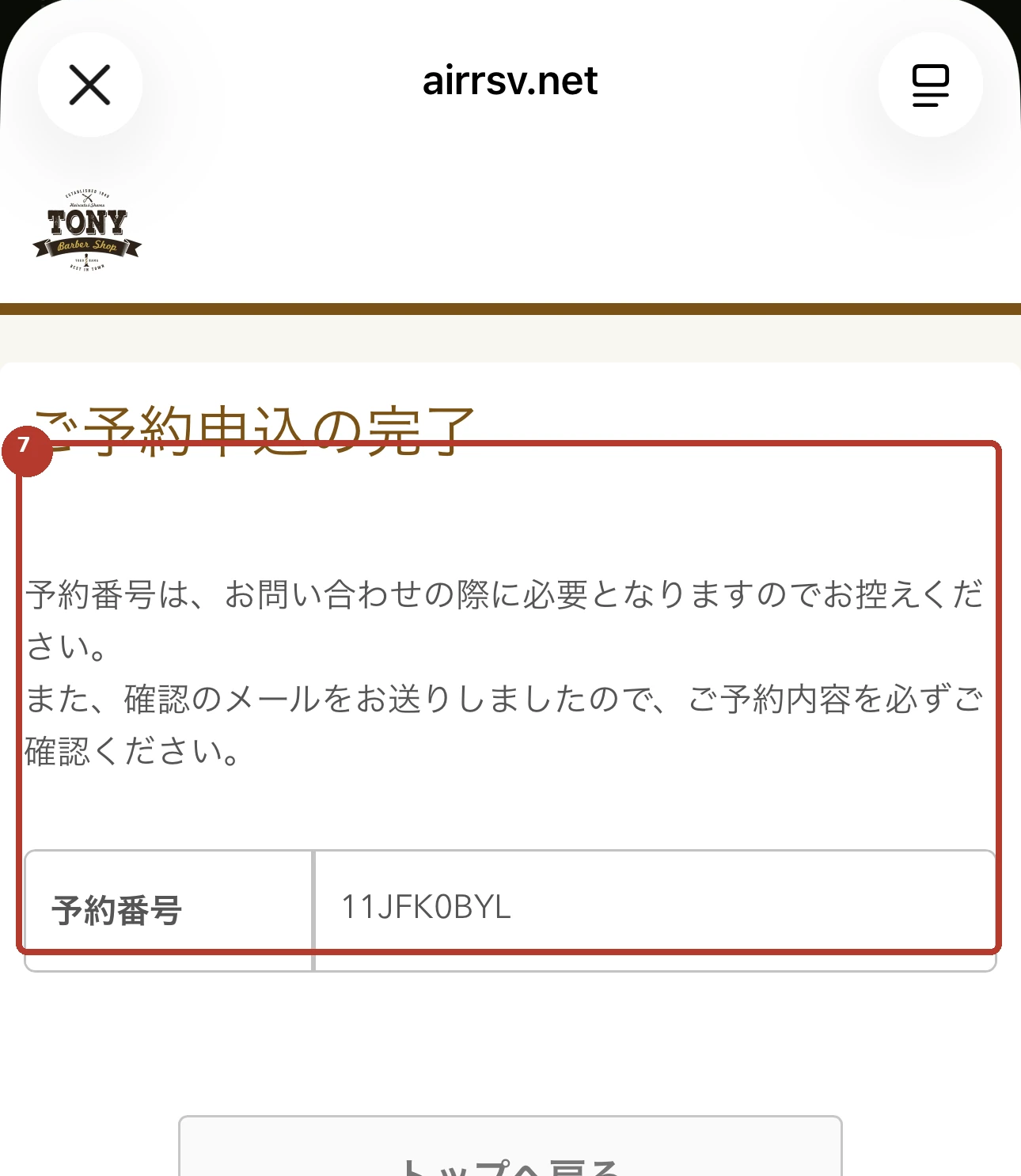
ご予約申込の完了
ご予約申込の完了 = Booking request completed
Save the reservation number and confirmation code shown on the completion screen. The example screenshot shows “11JFK0BYL”; save the number shown on your own screen instead. Then check for the booking email; if it is missing, check spam and your @airrsv.net settings.
Keep the reservation number for any follow-up with the salon.
Save your reservation code and check your email
Open booking in new tab